

Monday, 10 August, 2026г.















Где искать: по сайтам Запорожской области, статьи, видео ролики
пример: покупка автомобиля в Запорожье
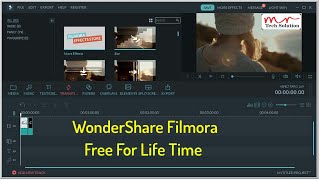
Downloading of elements not working in Filmora? (easy solution)
 У вашего броузера проблема в совместимости с HTML5
This tutorial video will show you step by step what to do when the downloading of elements in Wondershare Filmora video editor is not working.
Before I found this solution, I tried to download elements (e.g. arrows, hearts, emojis, badges, etc.) in Filmora but the elements would not download at all.
And:
Everytime I clicked on an element or the download arrow, it stayed stuck at 1% and it never completed the download.
Fortunately I found a solution which I will share with you in this video.
I've made this tutorial on a Windows 10 PC, but it should also work on a Windows 7, 8 or 8.1 computer.
NEW VIDEO: https://www.youtube.com/watch?v=zvbYO9L3s9s
Solution:
1. Open Windows Control Panel.
2. Click on "System and Security"
3. Click on "Allow an app through Windows Firewall" or "Allow an program through Windows Firewall" (on Windows 7).
4. Click on the "Change settings" button.
5. Click on the "Allow another app" button or "Allow another program" button (on Windows 7).
6. Click on the "Browse" button.
7. Open the "Program Files" folder.
8. Open the "Wondershare" folder.
9. Open the Wondershare Filmora" folder.
10. Select "ImageHost".
11. Click on the "Open" button.
12. Click on the "Add" button.
13. Click on the "OK" button.
14. If Wondershare Filmora is running you will need to restart it.
This solution solved my problem and hopefully it will also solve yours.
Теги:
how to tutorial filmora video editor wondershare filmora wondershare video editor filmora elements downloading elements filmora downloading elements filmora not working filmora video editor Video editing software
Похожие видео



Мой аккаунт