

Sunday, 19 July, 2026г.
















Где искать: по сайтам Запорожской области, статьи, видео ролики
пример: покупка автомобиля в Запорожье
How to Combine Ethernet and Android Phone Connections on your PC
 У вашего броузера проблема в совместимости с HTML5
I’m Ryan from Connectify, and in this video, I’ll show you how you can use Speedify to combine a tethered Android smartphone connection with an Ethernet connection on your PC.
=======
Get Speedify from the Apple Store or Google Play Store: https://speedify.com/download/ - available for iPhone, Android smartphones, Mac and PC.
=======
Speedify is an intelligent bonding VPN you can use to combine Ethernet and a connection from an Android smartphone on your PC. More importantly, Speedify detects when one of those connections is weak. Then, it seamlessly transfers your traffic to the other connection, so you never have to deal with dropped calls and interrupted video again. This technology is called Channel Bonding.
Requirements:
- PC
- Android phone with data plan
- Ethernet Cable
- Router/Modem
- Speedify
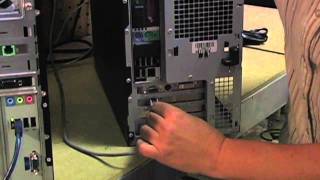
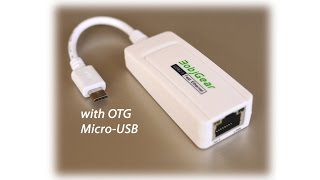
First, plug an Ethernet cable into the appropriate port on your PC. Some newer PCs don’t come with an Ethernet port, so these will require a USB-to-Ethernet adapter. Once you’ve connected your Ethernet cable to your laptop, plug the other end into your modem or router. Usually, you’ll connect to the internet automatically.
Next, go to your phone’s Network Settings. There, you should find a section on Tethering. Tap on that and toggle the Mobile Hotspot switch on.
Now, click on the computer or Wi-Fi symbol in the lower right corner of the taskbar. Turn Wi-Fi on by clicking on the tile in the lower side of the pop-up menu and selecting the hotspot you set up on your phone.
Now it’s time to start combining connections by turning Speedify on! When you launch it, Speedify automatically detects your 2 active connections. You’ll see them contained inside Connection Bubbles near the top of the Dashboard.
=======
Android Tethering:
USB: https://support.speedify.com/article/421-how-to-connect-your-pc-to-a-tethered-android-smartphone-via-usb-cable
Bluetooth: https://support.speedify.com/article/422-how-to-connect-your-pc-to-a-tethered-android-smartphone-via-bluetooth
=======
Get Speedify now from the Apple Store or Google Play Store - it's free! https://speedify.com/download/
Теги:
ethernet wired Windows computer laptop combining connections vpn smartphone android WiFi tethering hotspot
Похожие видео
Мой аккаунт