

Tuesday, 04 August, 2026г.
















Где искать: по сайтам Запорожской области, статьи, видео ролики
пример: покупка автомобиля в Запорожье
How to install Android 6.0 Marshmallow - CyanogenMod 13 on Samsung Galaxy Tab 2
 У вашего броузера проблема в совместимости с HTML5
Please turn on your Video Annotations in Youtube setting.
HERES IS WHAT YOU NEED TO DOWNLOAD!!!
1. Samsung USB Drivers
2. Odin
3. CMW Recovery .tar.md5
4. CMW Recovery .zip
5. CM13 ROM for your specific device
6. GoogleApps nano
CyanogenMod 13 - Android 6 Marshmallow Rom
My device: Samsung Galaxy Tab 2 GT-P5110
CM13 ROM - Specific to Samsung Galaxy Tab 2 10.1 GT-P5110 & GT-P5113
https://www.androidfilehost.com/?fid=24580943222146728
CM13 ROM - ONLY for GT-P5100
https://www.androidfilehost.com/?fid=24580943222146727
Link to Roms & Recovery for GT-P51XX
https://www.androidfilehost.com/?w=files&flid=14075
Link to Roms & Recovery for majority of devices
https://mega.nz/#F!oZ1QDDbC!Ko20UNhowwIlXLVFjJsyKw
Google Apps & Compatible for All devices
http://opengapps.org/
ClockworkMod Recovery V.6.0.5.1 GT-P51XX
GT-P5110_CWM_6.0.5.1.tar.md5
https://androidfilehost.com/?fid=95916177934523958
GT-P5110_CWM_6.0.5.1.zip
https://androidfilehost.com/?fid=95916177934523959
CMW Recovery for All devices & Models
http://forum.xda-developers.com/showthread.php?t=2201860
Odin V3.09
http://odindownload.com/
Samsung USB Drivers
http://developer.samsung.com/technical-doc/view.do?v=T000000117
How to Install CMW recovery using Odin
https://youtu.be/DIj-FL1K7To
and
http://trueandroid.com/install-cwm-6-0-4-5-advance-edition-on-galaxy-tab-2-10-1-p5100-how-to-guide/
To Root your device
Part One of the current video or visit
http://androidmtk.com/root-samsung-galaxy-tab-2-10-1-gt-p5110
To check the Root successful status
https://play.google.com/store/apps/details?id=com.joeykrim.rootcheck&hl=en
To Unroot & RESTORE your device
https://youtu.be/5MP-jaQZ_GE?list=PLPMLQlOEKouOvL_6l_swr7Qw7cba095s1
Img to .tar.md5 converter (useful for odin flashing)
http://forum.xda-developers.com/attachment.php?attachmentid=1966715&d=1368706083
Steps - http://forum.xda-developers.com/showthread.php?t=2281287
Alternative Guide - https://www.maketecheasier.com/convert-img-files-to-odin-flashable/
How to flash .tar/.tar.md5 file using odin
2:30 of the video or https://www.youtube.com/watch?v=DIj-FL1K7To
**Android 6.0 Rom & Recovery link for ALL the DEVICES**
https://www.androidfilehost.com/?w=devices
*To find the rom for your device, just type your device name/model in search bar
PhilZ Touch Recovery Forum
https://forum.xda-developers.com/showthread.php?t=2202635&page=11
ClockworkMod Recovery Forum
http://forum.xda-developers.com/showthread.php?t=2202635
Steps in general:
1. Root your device.
2. Install CMW Recovery.
3. Download CyanogenMod 13 (Android 6) ROM and Google Apps to your computer.
4. Connect your device to your computer using the USB cable.
Ensure all the device drivers are completely installed#
5. Now copy/paste the downloaded CM-13 ROM and Google Apps zip files to your device.
6. Then turn OFF your tablet and disconnect from the USB cable.
7. Now to get in the Recovery Mode by holding Volume Down + Power buttons together, then release Power button when the logo comes up.
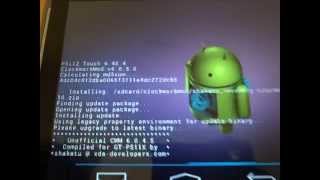
8. Once you are in ClockworkMod Recovery, perform “wipe data/factory reset”, perform “wipe cache partition”, perform “wipe dalvik cache” from the ‘advanced’ menu.
Use the Power button to select, Volume button to choose while in the Recovery Mode#
9. Then go back to the main recovery screen and select “install zip from SD card”.
10. Now select “choose zip from sdcard”, and navigate to the file location. Click 'Yes' to confirm the installation, and repeat the process for Google Apps.
11. After the installation completes, go back to main menu and click “reboot system now”.
12. First boot will take about 2min, grab a coffee and enjoy your day with a Marshmallow.
14. Congratulation, you have successfully finished upgrading to Andriod 6.0 Marshmallow.
Please Note:
- Backup your data, as it will format your device to Factory setting.
- This video is based on Samsung Galaxy Tab 2 10.1 GT-P5110, if you have different device, the methods will be just slightly differ.
- Samsung KIES will NOT detect your device after installing this ROM since it's a custom firmware.
Thanks for watching guys, if you have any questions, drop it in the comment box below.
Music credit: http://www.bensound.com/royalty-free-music
Теги:
android 6.0 Marshmallow samsung galaxy tab 2 gt-p5110 gt-p5100 gt-p5113 mobile tablet latest cyanogenmod recovery root install google apps odin usb drivers cmw guide how unroot restore links steps viral ultimate working successful android marshmallow samsung galaxy tab 2 samsung tablet free download
Похожие видео

Мой аккаунт