

Tuesday, 04 August, 2026г.
















Где искать: по сайтам Запорожской области, статьи, видео ролики
пример: покупка автомобиля в Запорожье
How to View and Change the Password to DLink, TPLink, Asus, Netis, Zyxel, ZTE Router or Modem ??⚙️
 У вашего броузера проблема в совместимости с HTML5
? Watch how to learn and change the password to Wi-Fi network shared by your router or modem. After a router or modem is set up, installer personnel don’t usually show users how to change the default password to Wi-Fi. When you finally want to do it, you may face some difficulties. The same happens when you forget the password to your Wi-Fi network.
Accidental deleting of files, formatting the hard disk, a virus attack, an operating system failure or file system failure — these are only a few problems that can be solved with programs by Hetman Software: https://hetmanrecovery.com/.
How can you change the password?
• To learn or change the password to Wi-Fi you should go to the router settings menu.
• You can get to this menu through the computer or smartphone connected to such router by cable or Wi-Fi.
• Open any browser and type in the router’s IP address.
Usually you can find the address on a sticker put on the bottom or side panel of the device. If there is no such information there, you can have a look into the user’s manual.
• By default, the IP address is 192.168.0.1 or 192.168.1.1
If you cannot enter the settings by using the default IP address, contact your Internet provider or the specialist who installed and set up the router. They may have changed the address. Such operation is possible.
• After you have typed the address, hit Enter.
• The system will ask you for your login and password.
By default, these are “admin” and “admin.” This information is usually printed on the same sticker next to the IP address.
• For my router, the login and password have been changed. I enter my data.
• Go to the menu Wireless / Wireless Security
• Find Wireless Password. This is actually your Wi-Fi password.
• You can try memorizing it again, if you forgot it, or change it, if necessary.
If you decide to change it, don’t forget to save changes.
• You can change the network name in the Wireless root menu.
In some cases, changes will only take effect after the router is restarted.
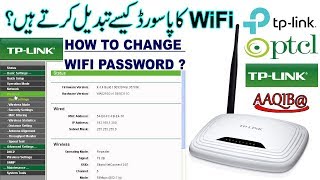
In this particular video, I’m showing the router menu with the example of my TP-Link device. In other routers or modems, the menu may look different. However, the point is the same.
Here are several examples of Wi-Fi settings menu for other popular routers:
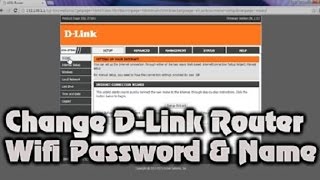
D-Link
Asus
Zyxel
Netis
You can see that knowing where a certain setting can be located, you can find it instinctively.
By the way, you can set up a router not only from a computer, but also from a smartphone or tablet PC through Wi-Fi. In this case, the router menu will look the same.
If you have Internet connection problems, read our guide to troubleshooting connection problems, including cases with a modem or router. Find the link to the article in the description: https://www.youtube.com/watch?v=oZXjQYkBTfU
That is all for now. I hope this video will be useful for you. Hit the Like button and subscribe to our channel. Thank you for watching. Good luck.
Other videos: #Wifi, #Password, #Security, #Router, #Modem, #Windows, #DLink, #TPLink, #Asus.
Теги:
password wifi password wifi router change the password learn password a computer phone password Wifi modem view password Change password Android Windows DLink TPLink Rostelecom Asus Netis Zyxel ZTE standard password password router password modem where is the password enter the password Change Password the default password Wifi network password
Похожие видео
Мой аккаунт