

Saturday, 08 August, 2026г.
















Где искать: по сайтам Запорожской области, статьи, видео ролики
пример: покупка автомобиля в Запорожье
L710VPUCND8 Sprint Galaxy S III SPH-L710 Android 4 4 2 KitKat Firmware Upgrade
 У вашего броузера проблема в совместимости с HTML5
L710VPUCND8 Sprint Galaxy S III SPH-L710 Android 4 4 2 KitKat Firmware Upgrade -
For Odin manual installing, Odin back to Stock 4.4.2 ND8, Unroot and return to official system state.
This is the official Android 4.4.2 KitKat firmware L710VPUCND8. It's unmodified nor rooted, it a 100% full ND8 firmware packaged.
L710VPUCND8 is actually the L710VPUDND8 once you installed. The L710VPUCND8 posted from Sprint support page while L710VPUDND8 also officially addresed at Samsung support page.
Facebook - https://www.facebook.com/androidromupdate
Google+ - https://plus.google.com/+Androidromupdate
Twitter - https://twitter.com/AndroidSolution
Full detailed guide - http://goo.gl/aXdTxQ
L710VPUCND8 Stock Firmware - http://goo.gl/scaGA6
Odin3_v3.09 - http://goo.gl/m1pX7U
USB Driver - http://goo.gl/L5onu1
How to Install the Full Stock 4.4.2 KitKat L710VPUDND8 Firmware
Run and Configure Odin
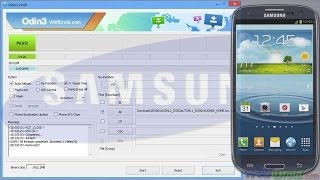
Run Odin downloader Odin3_v3.09 on your PC desktop. Watch out the check-boxes options on the right top of Odin, ensure that the 'RE-PARTITION' is unchecked, only the 'AUTO-REBOOT and 'F.RESET TIME' checkboxes are both remained checked.
Reboot your Galaxy S3 into Download Mode
To reboot the Galaxy S3 into download mode , you need to turn the power off. After it completely shut off, just press and hold the Volume Down key, Home button and thePower ON/OFF button simultaneously.
You should then prompted into a warning screen and asking you to press volume up if you want to continue or volume down to cancel, just simply press volume up to get into download mode. The download mode then displays an Android robot and say's "Downloading.. Do not turn off target!!"
Connect your Phone to PC or Laptop
Once you already reboot the phone in download mode, simply connect the phone to your PC or laptop USB.
In Odin window -- the ID:COM box will turn to blue color and indicates the COM port numberand a word "Added" on a log box will prompt you that the device is already detected or recognized by Odin. Your COM port number might be different from mine. If you do not see a COM port number then there's something missing or wrong. You may read again from the top of this post.
Load the stock 4.4.2 L710VPUCND8 firmware file
T he stock ROM is pack in One .tar.md5 file only. Now, you need to just simply click on the AP button, then browse to the folder where the file you have previously extracted and then select and load it.
"L710VPUCND8_L710SPRCND8_L710VPUCND8_HOME.tar.md5″
Start Installing the L710VPUDND8 stock firmware.
Once if all set and ready to fire-up, hit the "START" button in Odin to begin flashing the stockROM.
Do not ever interrupt the phone while already in flashing progress, like disconnecting the cable or turning off the device. Just wait until it completely finish.
Wait 'till it PASS!!
When the Stock ROM installation successfully completes, you will then see a word "PASS" in Odin. This indicates that the flashing was already finish, and on the log box it says "All threads completed. (succeed 1 / failed 0)". The phone will just then automatically reboot, then it's time to remove it from PC or laptop USB connection.
Теги:
L710VPUCND8 Sprint Galaxy S III SPH-L710 Android 4 4 2 KitKat Firmware Upgrade L710VPUCND8 Download L710VPUDND8 L710VPUDND8 Download L710VPUCND8 Firmware Sprint Galaxy S3 Firmware yt:stretch=16:9
Похожие видео
Мой аккаунт