

Monday, 08 June, 2026г.
















Где искать: по сайтам Запорожской области, статьи, видео ролики
пример: покупка автомобиля в Запорожье
Setting up TS4MP for LAN
 У вашего броузера проблема в совместимости с HTML5
Attention! If you have the "client.txt" on your mod folder, you won't be able to play the game alone. Remove this .txt file in order to play solo.
-----------------------------------------------------------------------------
Here's the contents of the text file of the video. Sorry again for no mic
Hello! Sorry for having no mic
I'll show how to setup TS4MP for LAN playing.
I'll not cover how to install the mod. Check other videos in that regard.
Installation procedure is just the same. This is just a how-to to set it on LAN.
I'll try keeping the video short.
Pause if needed
=================================
Given that your mod is properly installed, and you're now wondering on how to connect through
LAN, just follow these steps:
Make sure BOTH computers are visible on the network (i.e. this must be done on BOTH computers)
1 - Set the network to Private
1.1 - Right click your Network icon on Taskbar (be it Cable or Wifi)
1.2 - Click "Open Network & Internet Settings"
1.3 - Click "Change Connection Properties"
1.4 - Set it to private
2 - Enable the following services:
DNS Client
Function Discovery Provider Host
Function Discovery Resource Publication
SSDP Discovery
UPnP Device Host
2.1 - Tap WindowsKey + R (just like you'd do with Ctrl+C)
2.2 - Type "services.msc"
2.3 - Find the service
2.4 - Right click it
2.5 - Go To Properties
2.6 - Set its start to Automatic
2.7 - Press Apply
2.8 - Start the service
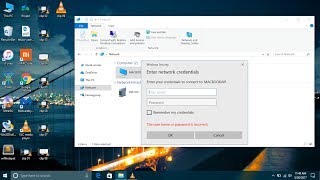
3 - Open "Network" folder and check if both machines are visible
3.1 - In some cases, the folder might be blank with a yellow bar saying "Network
discovery is disabled. Click here to enable". Just click there to enable.
4 - If both machines are visible, you're good to go. If not, try repeating the steps, and make
sure both computers are in the same network (check if the first 3 IP digits are the same
i.e. "192.168.1.X", whereas "192.168.1" is the subnetwork both computers are on)
=================================
Now, you must set up the Host and Client for TS4MP.
On the Host machine, there isn't much to be done other than the previous step and installing the mod.
On the client, two files require attention
1 - The client.txt file
You must create a blank "client.txt" file inside ts4mp\core folder.
2 - The server_config.py file
You must edit the "server_config.py" file inside ts4mp\configs to match the Host IP.
The client.txt is self explanatory. Just create a blank text file on the folder.
The server_config.py, you can open it with Notepad and type the Host IP there, using 9999 as Port.
To find out what's the Host IP, just do the following
1 - WindowsKey + R on the Host PC
2 - type CMD
3 - On the prompt, type "ipconfig"
4 - Look for your IPv4 Address (pay attention to which network you're currently on. i.e. I'm on Ethernet (Cable))
After that, TS4MP is ready to play on LAN.
Follow the standard join procedure
1 - Sync save you want to use
2 - Host opens game and waits Main Menu
3 - Client opens game after host has reached Main menu
4 - Host loads the save and enters the lot
5 - Host immediately pauses the game after loading, if not already paused (tip: Pause the game before saving)
6 - Client loads the save and enters the lot
7 - After Client successfully loads the lot, and has a broken UI, host should use "add_sim_clients" to fix UI.
Enjoy.
Теги:
ts4mp sims 4 the sims 4 the sims 4 multiplayer the sims 4 mp TS4 LAN The Sims 4 LAN Multiplayer LAN TS4Multiplayer
Похожие видео

Мой аккаунт