

Tuesday, 04 August, 2026г.
















Где искать: по сайтам Запорожской области, статьи, видео ролики
пример: покупка автомобиля в Запорожье
Xcode Auto Layout Button Height
 У вашего броузера проблема в совместимости с HTML5
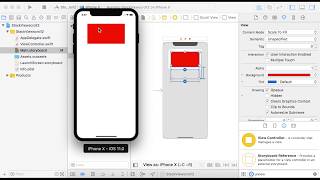
This is a demonstration of using auto-layout to define height of controls that are not unique to a particular device screen size, but rather resize for whatever device you happen to use. The key is to not define height (or width) constraints that are defined by absolute constant size, but rather relative to either their superview or to each other. And if you combine relative height constraints (using different "multipliers") with top and bottom constraints that dictate the placement of the buttons relative to (a) the super view; and (b) with respect to each other, you end up with an Xcode scene which resizes appropriate regardless of what device on which you run the app.
This demonstrates creating a view from scratch. If you have an existing scene that already has constraints, you might want to remove all the constraints and then create the ones you want. Notably, make sure that you don't have any height constraints that are just constants, because if you do that, they won't resize when viewed on differently sized devices (except, of course, for those controls that you don't want to change size from device to device).
This video was created in response to this question on Stack Overflow: http://stackoverflow.com/a/35899917/1271826
Похожие видео


Мой аккаунт